
Getting Started with Brainlife Connects #
Welcome to Brainlife Connects (connects.brainlife.io)! Brainlife is an open, cloud-based platform for reproducible neuroimaging data analysis, processing pipelines, and scientific publication.
This "Getting Started" guide will walk you through the core workflow on Brainlife Connects:
- Signing up and logging in
- Key terms to know
- Navigating the platform
- Creating a new project
- Adding data to your project
- Visualizing data-objects
- Running processing apps and pipelines
- Interactive group analysis with notebooks
Sign Up #
To begin using Brainlife, you need a registered account:
- Go to the Brainlife authentication page.
- Choose your preferred login method:
- Third-Party Providers: Google, GitHub, ORCID, Apple, or your academic institution.
- Email & Password: Sign up directly with your email address.
- You can connect multiple login providers to your profile in Settings > Account > Account Settings > Connected Accounts.
If you register using a third-party authenticator (such as Google or GitHub), make sure to sign in with that same account every time so you don't inadvertently create multiple profiles.
brainlife.io terms to know #
Before diving into project workflows, let's review two fundamental concepts:
Data-Object #
A data-object is a specific set of files representing one subject, session, and neuroimaging modality. It is the core unit of data on Brainlife:
- For example, a
neuro/dwidata-object consists ofdwi.nii.gz(the 4D diffusion image),dwi.bvecs, anddwi.bvals. - A FreeSurfer parcellation output for a subject is a single data-object containing all generated surface and segmentation directories.
- Data-objects have immutable data (the underlying raw image files cannot be modified) and mutable metadata (tags, subject IDs, and descriptions can be updated).
Datatypes #
Brainlife Apps exchange information through standardized datatypes.

- Each datatype defines the expected files, directory structure, and metadata for a modality.
- Colored badges on an App card indicate which datatype an App requires as input and which datatype it generates as output.
- Datatype tags (such as
acpc_aligned,masked, orpreprocessed) provide extra specificity so downstream Apps receive the exact input format they need. - Browse registered specifications anytime on the Datatypes page.
Navigating Brainlife Connects #
Brainlife Connects provides a streamlined sidebar navigation divided into two primary zones:
Me (Personal Workspace):
- Dashboard: Your unified hub displaying recent task activity, project shortcuts, and processing notifications.
- My Projects: Projects you administer, contribute to, or follow.
- My Resources: Compute clusters, HPC resources, or cloud nodes registered for your use.
- My Datatypes: Custom datatypes you maintain or develop.
Explore (Community & Open Science):
- SKAI: Brainlife's AI-powered neuroimaging assistant to help design workflows, query analyses, and troubleshoot tasks.
- Public Datasets: Centralized explorer for open neuroscience data, including the Dataset Library, DANDI, EMBER, and BossDB (with direct S3 browsing).
- Apps: The catalog of public neuroimaging analysis tools, containerized and ready to run.
- Datatypes: Community-registered datatype standards.
- Public Projects: Shared open research projects from labs worldwide.
- Research: Published datasets and reproducibility packages with DOIs.
Create Project #
Projects are workspaces where you organize datasets, run compute workflows, launch interactive analyses, and collaborate with your team.
- In the sidebar menu, click My Projects (
/projects?scope=mine). - Click the New Project button in the upper right.
- Fill in the project creation modal:
- Title: A concise, descriptive name (e.g. Longitudinal Tractography Study).
- Description: A summary of research questions, cohorts, or methods.
- Click Create project.
Congratulations! Brainlife will create your project and navigate directly to its workspace.
Project Structure #
Inside your project, you will find five dedicated tabs:
- 1. Overview: ReadMe documentation, access control (Admins, Members, Guests), related journal articles, and automatic citations for the Apps used.
- 2. Data: Interactive table of all project data-objects, metadata filtering, dataset visualizers, and staging actions.
- 3. Processing: Execution center with three views: Summary (job health and execution stats), Pipeline (automation rules), and Processes (running and completed compute jobs).
- 4. Analysis: Built-in Jupyter Notebook instances running in the cloud directly against your project data.
- 5. Publications: Tools to snapshot and permanently publish datasets and pipelines with citable DOIs.
Adding Data to Your Project #
Once your project is created, navigate to the 2. Data tab.
To add data, click the Add Project Data button at the top right of the data table. You can choose from multiple sources:
- Copy Data from Public Datasets: Browse thousands of open-access subjects from BossDB, DANDI, OpenNeuro, and the Brainlife Dataset Library, and import them directly into your project with a single click—no local downloading required.
- Copy Data From another Project: Select any public project or another project you belong to and copy datasets directly into your current workspace.
- Upload Data from ezBIDS / Local Files: If you have raw DICOM or NIfTI data on your local machine, convert and organize it using ezBIDS or upload it through the web uploader or Brainlife CLI.
Browsing and Copying Public Datasets #
Brainlife Connects makes open neuroscience datasets immediately available without requiring local downloads or manual staging:
Explore the Public Datasets Catalog: Navigate to Explore > Public Datasets (
/public-datasets). Use the source pills to filter collections by repository (Dataset Library, DANDI, EMBER, BossDB, or OpenNeuro), or search by title and modality.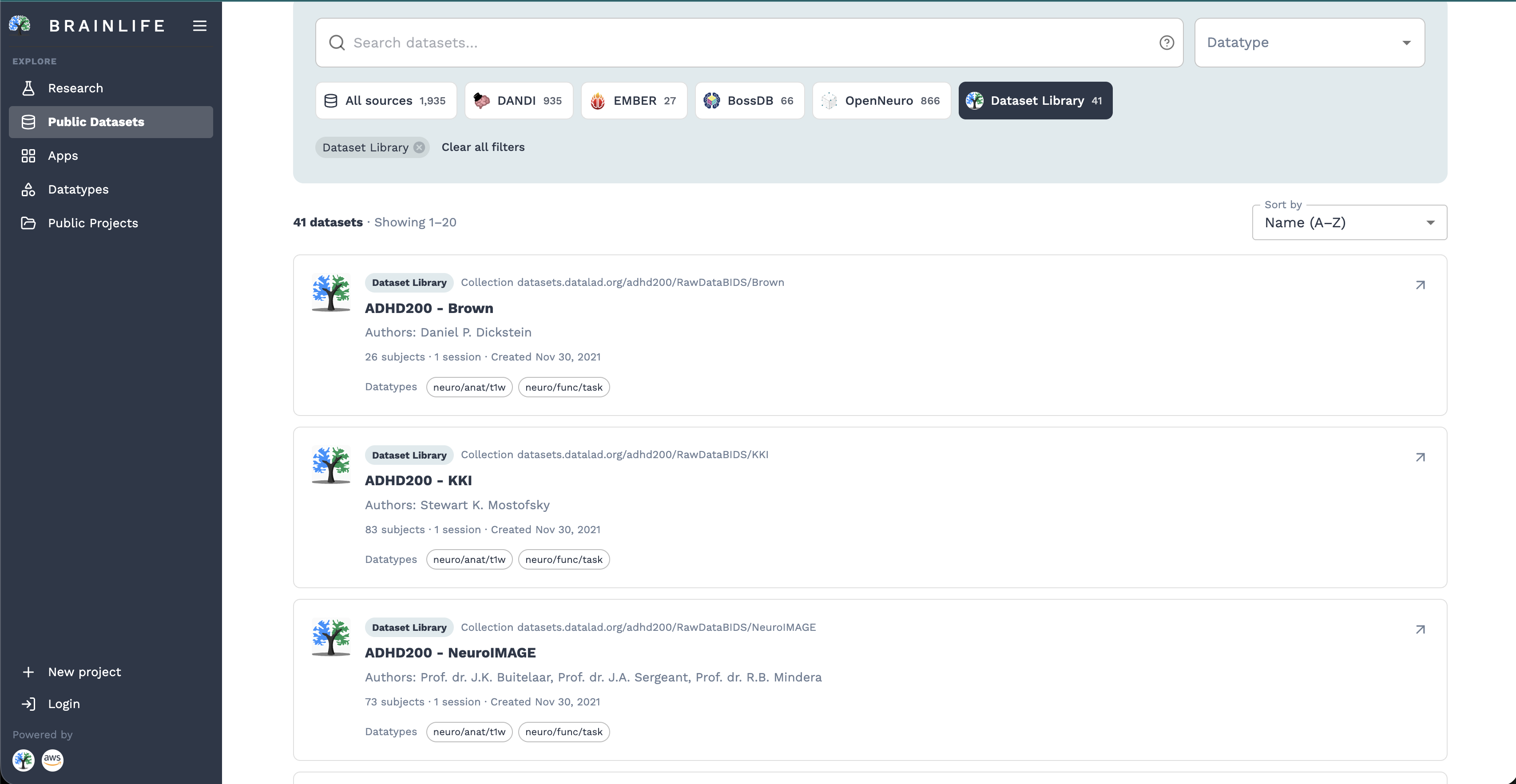
Public Datasets Explorer Inspect Collection Data: Click on any collection (such as ADHD200 - KKI) and switch to its 2. DATA tab to inspect all subjects, sessions, and available modalities.
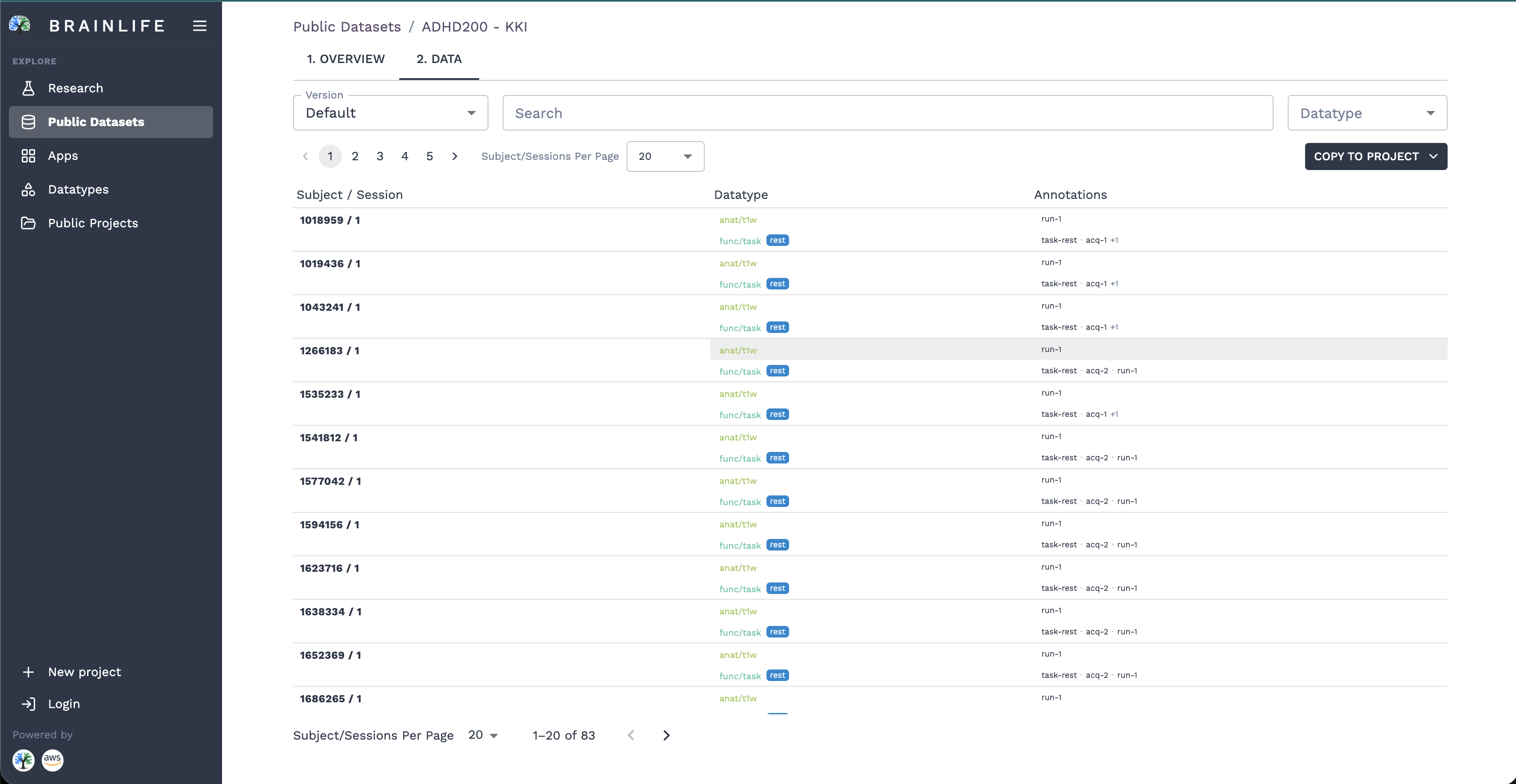
Collection Data View Filter Datatypes: Use the Datatype dropdown in the top-right toolbar to isolate specific modalities (such as
anat/t1worfunc/task).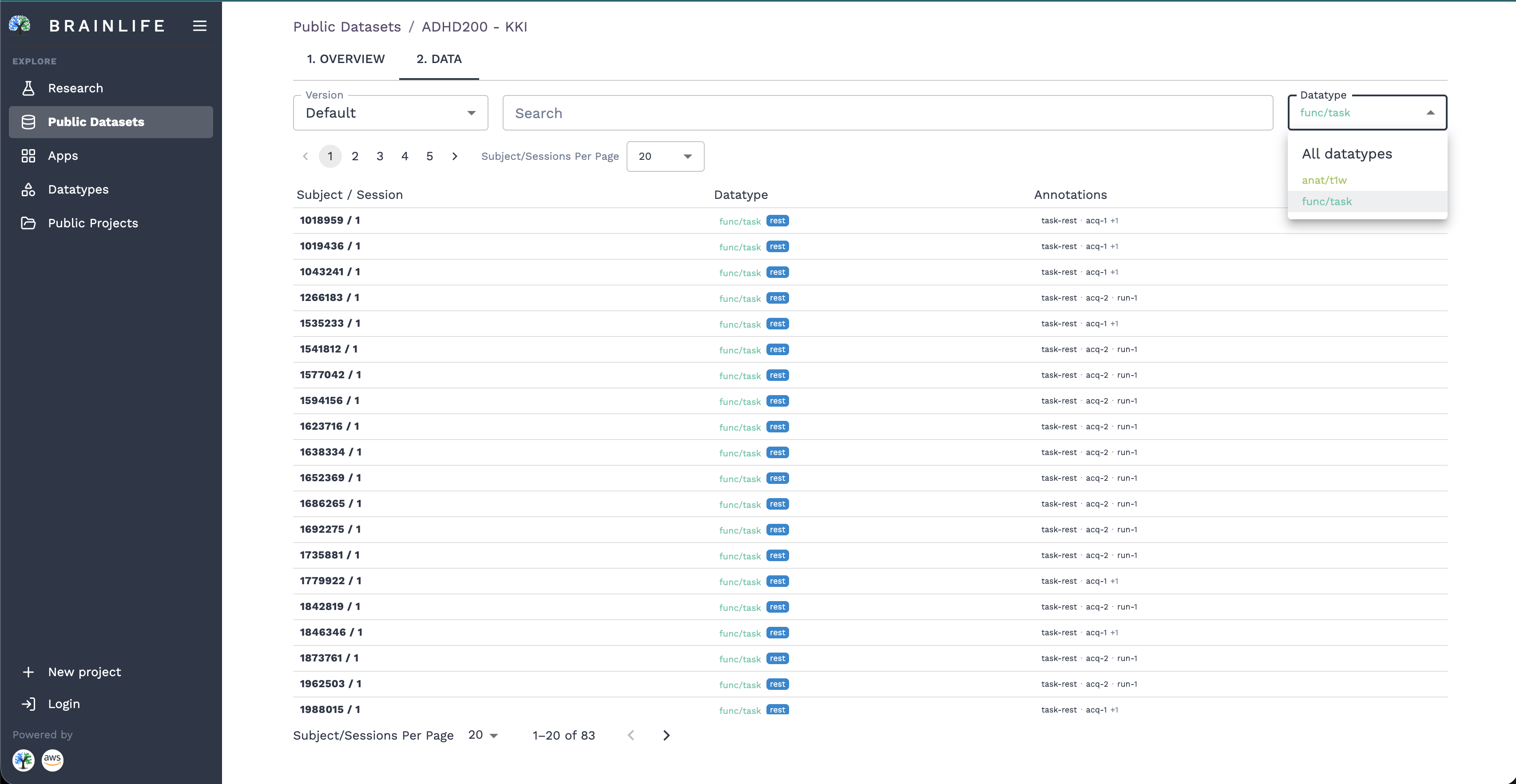
Filter Datatypes Copy to Project: Click the COPY TO PROJECT button in the upper-right corner. In the dialog:
- Select which datatypes you need to import.
- Choose either an Existing project or create a New project.
- Click SUBMIT. Brainlife creates virtual DataLad links in your project instantly.
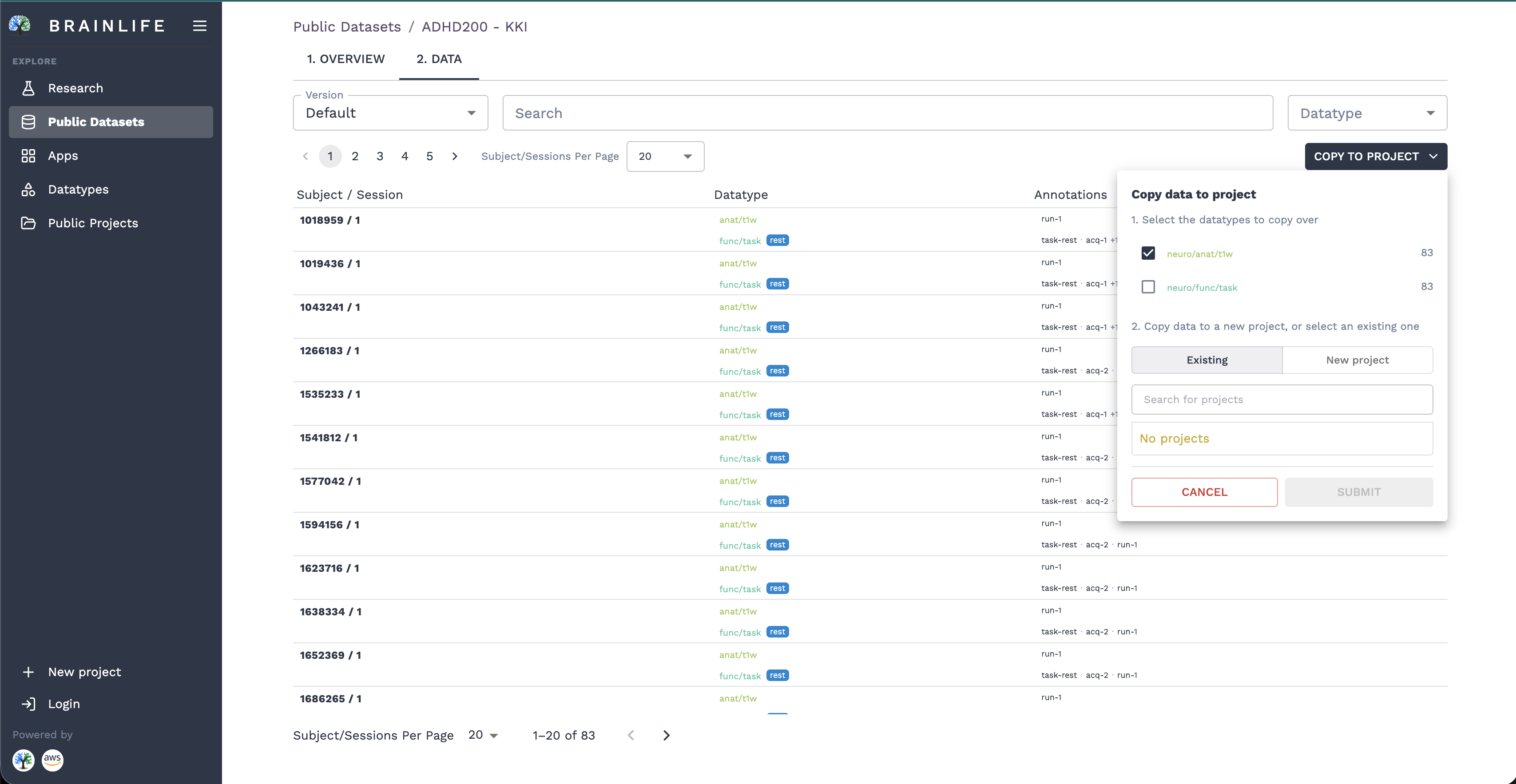
Copy Data to Project
Visualize Data-Objects #
You can inspect brain images, segmentations, and tractography results directly in your web browser without downloading multi-gigabyte files to your computer:
On the 2. Data tab, your staged data-objects are organized by subject and session, displaying their datatypes, tags, file sizes, and creation dates.
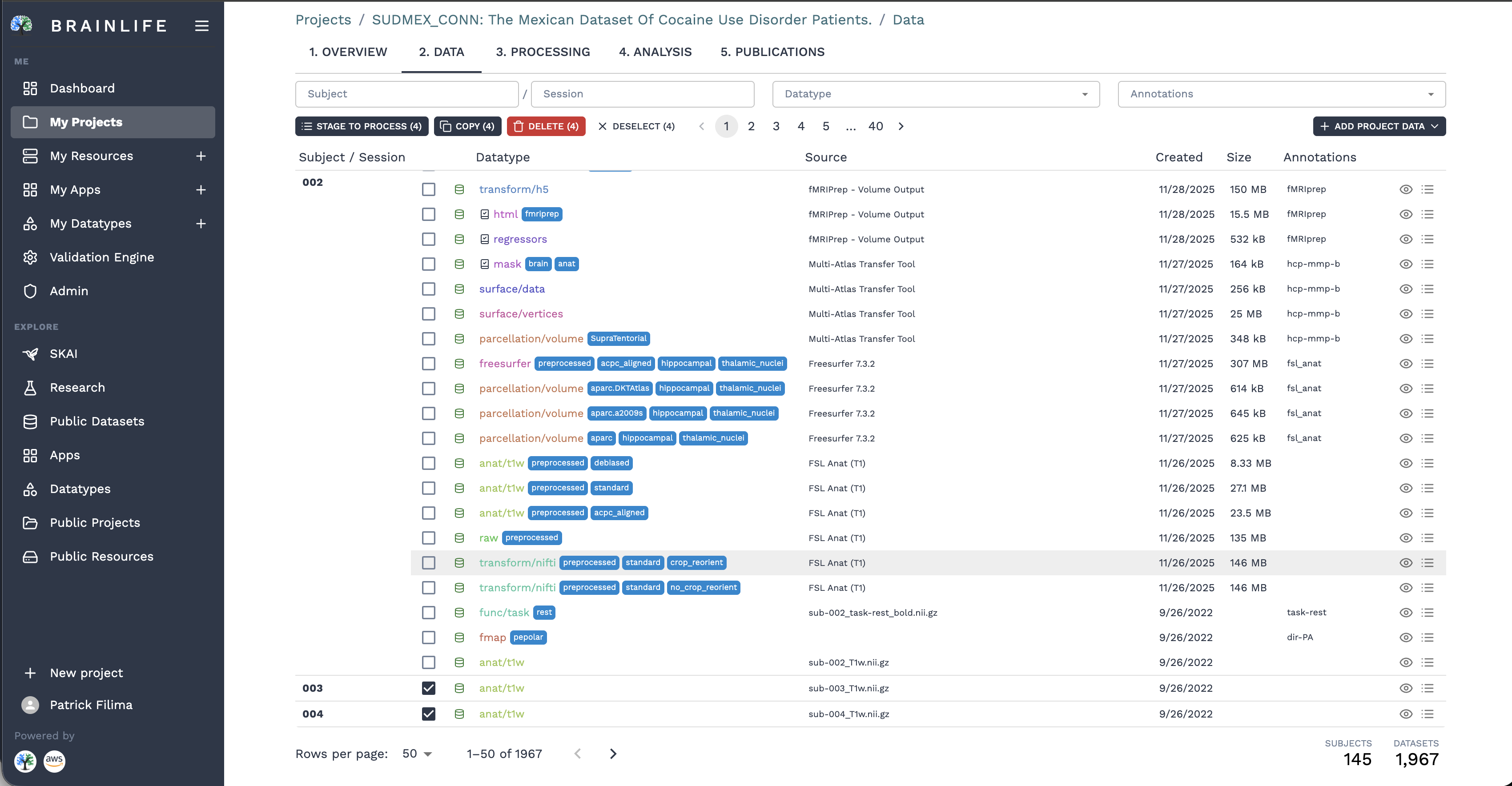
Project Data Tab Click the Visualize icon eyeball) on the right side of any dataset row, or select multiple rows to compare them.
Select an available viewer suited for that datatype:
- Volume Viewer: Slices through 3D/4D anatomical and functional volumes, with support for side-by-side multi-dataset comparison, voxel/world coordinate inspection, and color map thresholds.
- Freeview / FSLeyes: GPU-accelerated cloud viewers streamed directly to your browser via WebRTC/VNC.
- TractView: Interactive 3D white matter tractography and streamline visualizer.
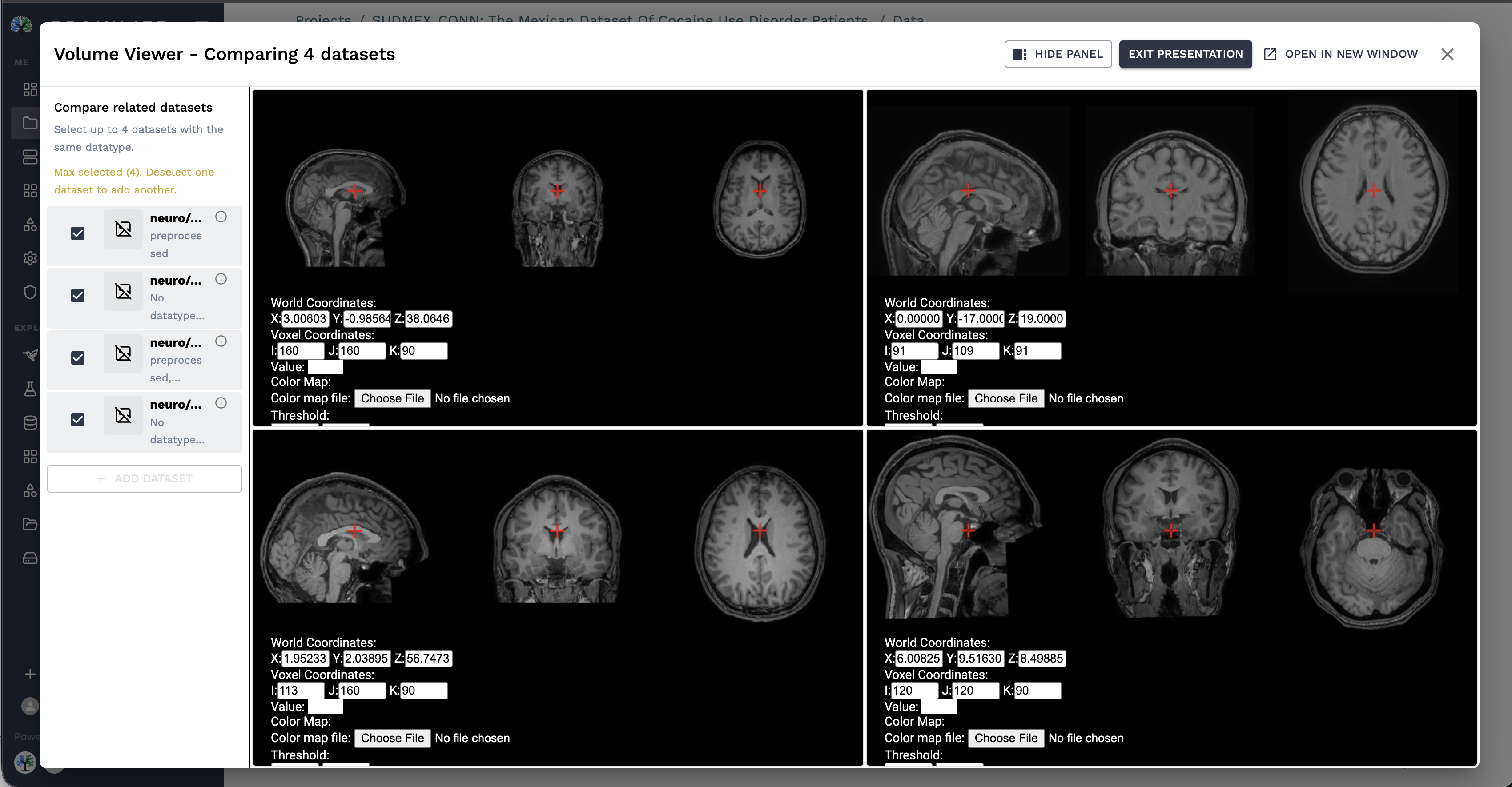
Volume Viewer Multi-Dataset Comparison The viewer launches in a clean modal overlay, letting you adjust contrasts, toggle overlays, and perform quick visual quality control before launching compute pipelines.
Data Processing #
To run computational analysis on your data, Brainlife Connects offers two integrated methods: Processes for on-demand task runs and Pipelines for automated batch execution.
Running a Process (On-Demand Execution) #
- Go to the 2. Data tab and select the dataset(s) you wish to process using the checkboxes on the left.
- In the action bar that appears above the table, click Stage to process (or click the List icon on an individual row).
- Select an existing process or choose to create a new process instance.
- Open the 3. Processing tab and switch to the Processes sub-view.
- Click Submit App to search the App catalog for an appropriate analysis tool (for example, FSL Anat (T1) or FreeSurfer for anatomical processing).
- Configure the App parameters and click Submit.
Brainlife's orchestrator (Amaretti) automatically transfers your data to an optimal computing resource, submits the batch job, and monitors its execution:
- Requested: The job is queued and waiting for compute resources.
- Running: The job is actively executing on the designated HPC/cloud cluster.
- Finished: Execution succeeded! Derivative datasets are automatically added to your project's data catalog.
- Failed: If an error occurred, expand the task's Raw Output to inspect
stdout,stderr, and log files.
Automating with Pipeline Automations #
If you need to analyze dozens or hundreds of subjects across your project:
- In the 3. Processing tab, select the Pipeline sub-view.
- Click the
+ Automationbutton to launch the 4-step wizard:- Select App: Choose an App from the catalog.
- Configure App Settings: Set fixed runtime flags and arguments.
- Configure Inputs: Set datatype tag filters, project overrides, and regex Subject/Session Filters.
- Configure Outputs: Add output tags to identify derivatives cleanly.
- Organize related rules into collapsible groups with
+ Automation Group. - Once active, the automation continuously evaluates your project: whenever subjects matching your criteria are added or upstream derivatives are produced, Brainlife automatically launches the App and archives the outputs.
Interactive Analysis #
Brainlife Connects integrates statistical analysis directly into your project via the 4. Analysis tab:
- Click the 4. Analysis tab.
- Click New analysis to launch an interactive cloud Jupyter Notebook.
- Choose to start from a blank template or import a published analysis notebook.
- The notebook runs directly inside your project environment, allowing you to load dataset derivatives, compute group averages, plot tract profiles, and generate figures without downloading datasets to your local workstation.
Next Steps #
Now that you understand the core flow of Brainlife Connects:
- Explore ezBIDS to standardize raw scanner data into BIDS.
- Read the Pipeline Guide to automate large cohort workflows.
- Learn how to wrap your own analysis scripts in the App Developer Guide.
- Have questions or need assistance? Join the Brainlife Slack Community or ask SKAI directly in Brainlife Connects!