
Projects #
Projects are the primary collaborative workspaces on Brainlife. Within a project, you organize datasets, configure automated pipelines, execute computational tasks, launch interactive cloud Jupyter notebooks, and publish citable data releases.
You can browse your own workspaces by selecting My Projects (/projects?scope=mine) or explore community research workspaces under Public Projects (/projects?scope=public).
Creating a Project #
To create a new project:
- Click My Projects in the left sidebar navigation.
- Click the
New Projectbutton in the upper-right corner. - Fill in the project details:
- Title: A clear name for your project (e.g., Developmental Connectome Study).
- Description: A summary of your research goals, participant cohorts, or analytical techniques.
- Click Create project.
Upon creation, you will be navigated directly to your project workspace.
Project Structure & Navigation Tabs #
Every standard Brainlife project is organized into five dedicated tabs:
[ 1. Overview ] ── [ 2. Data ] ── [ 3. Processing ] ── [ 4. Analysis ] ── [ 5. Publications ]1. Overview #
The project homepage provides high-level documentation, metrics, and governance:
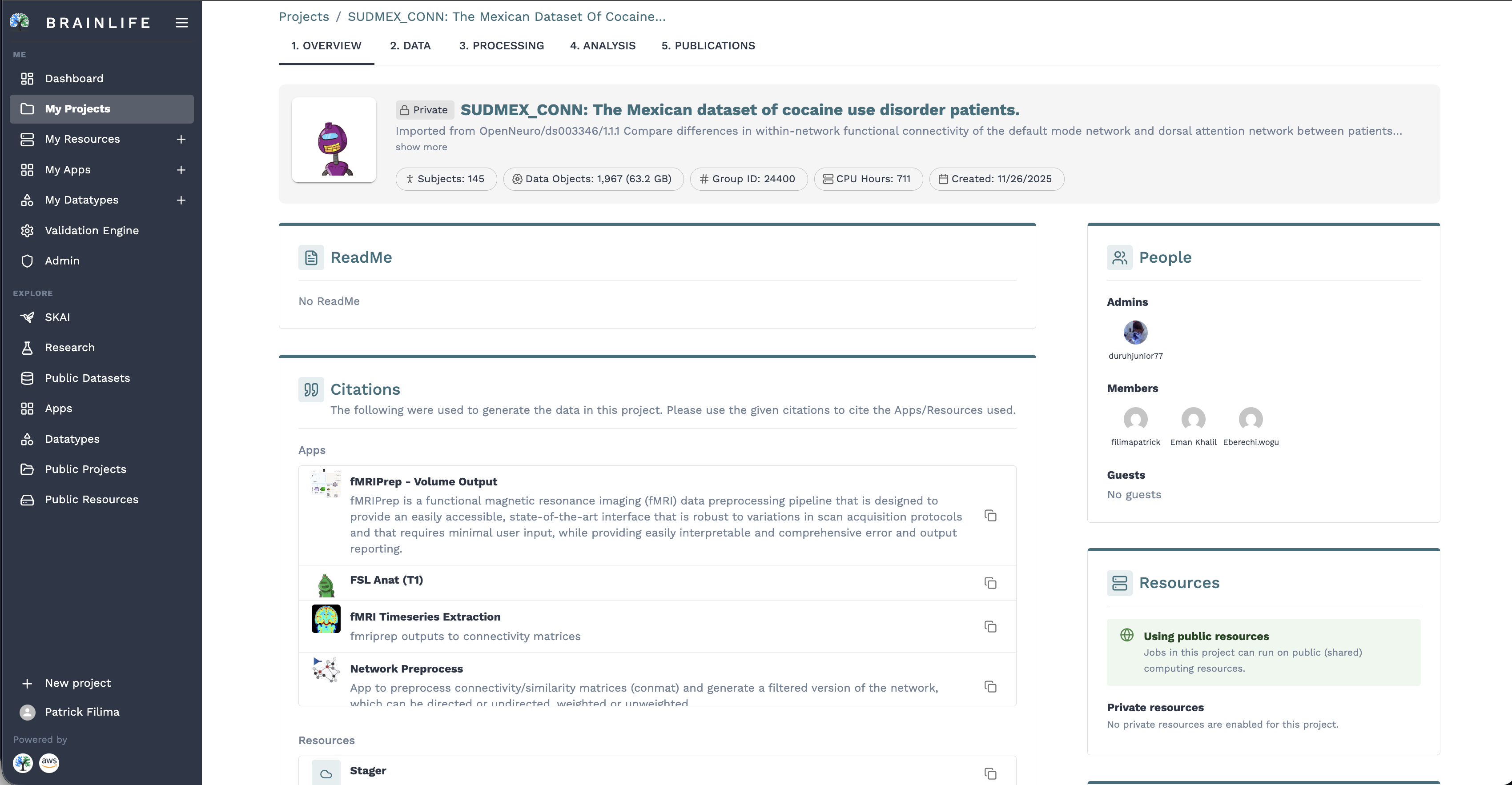
- Project Metrics & Stats: Immediate summary counters displaying total storage consumption (e.g.,
22.8 GB), number of Datasets (7), Participants (7), Processes (2), and active Automation Rules (5). - ReadMe Documentation: Rich Markdown detailing your study protocol, hypotheses, experimental design, and data collection notes.
- Automatic App Citations: A consolidated list of bibliographic citations for all computational Apps executed within the project, making it effortless to cite software in scientific publications.
- People & Roles: A visual roster of project administrators and contributing members, complete with user avatars, institutional affiliations, and the Add Member management interface.
- Computing Resources: A transparent panel listing all registered High-Performance Computing (HPC) clusters (e.g., Karst, Big Red 200, Carbonate, Quartz) authorized to process tasks for this project.
2. Data #
The central data repository for your project (replacing the legacy "Archive"):
- Interactive Data Table: View all data objects organized by Subject ID, Session, Datatype, and Tags.
- Datatype & Annotation Filters: Filter and search participants or modalities in real time.
- Batch Actions: Select multiple datasets to download, delete, edit tags, or stage directly into processing workflows.
- Dataset Inspector & Visualizer: Click any dataset row to inspect file hierarchies, review provenance history, or launch in-browser NiiVue WebGL 3D volume and surface visualizers.
- Adding Data: Use the Add Project Data button to upload local files, import BIDS datasets via ezBIDS, or copy open-science datasets directly from OpenNeuro, DANDI, BossDB, or EMBER without consuming local bandwidth.
3. Processing #
The computational execution engine, divided into three specialized sub-views:
- Summary: Live dashboard of project processing health, task completion metrics, and tools to resolve ambiguous inputs.
- Pipeline: Visual flowchart canvas to design and monitor rule-based Automations and Automation Groups for continuous batch processing.
- Processes: Interactive table of individual compute jobs, sliding raw output log drawers, and the visual Process DAG Editor.
4. Analysis #
Interactive data science in the cloud:
- Launch cloud-hosted Jupyter Notebook instances directly attached to your project data.
- Run group statistical models, plot tract profiles, analyze connectome matrices, and generate publication-ready figures without downloading datasets to your local machine.
5. Publications #
Data preservation and scientific dissemination:
- Snapshot project datasets and group analyses into permanent, citable Releases (
Release 1,Release 2). - Automatically assign a DataCite DOI with long-term IU Scholarly Data Archive tape backing and FAIR schema.org metadata.
For lightweight repositories primarily focused on raw data hosting or pipeline execution without interactive notebook modeling, Brainlife supports Lean Projects, which streamline the layout into four tabs (1. Overview, 2. Data, 3. Processing, and 4. Publications).
Project Settings & Access Control #
Project administrators can manage project configuration at any time by clicking Settings (/projects/:projectId/settings). The settings dashboard is organized into five functional sections:
1. Details #
- Title & Description: Edit the public project name and abstract.
- ReadMe: Update the project's Markdown documentation.
- Avatar: Upload a custom icon or logo representing your project.
- Project Tags: Add keywords (e.g.,
fMRI,ADHD,Connectomics) for search indexing across Brainlife.
2. Access & Group Roles #
Brainlife provides fine-grained role-based permissions:
| Role | Permissions |
|---|---|
| Admin | Full control. Can modify project settings, invite/remove members, adjust access policies, assign compute resources, and delete the project. |
| Member | Read and write access. Can upload data, stage datasets, submit compute processes, edit automations, and launch analysis notebooks. Cannot alter project membership or delete the project. |
| Guest | Read-only access. Can view project overview, browse datasets, and inspect pipeline execution status without making modifications. |
Visibility Policies #
- Public: Any registered Brainlife user can view project details, download archived datasets, and use data as inputs in processing workflows.
- Private: Restricted exclusively to project Admins, Members, and Guests. The project is hidden from public listings.
- List project summary for all users: Keeps the underlying datasets private to project members while allowing the project title, abstract, and tags to appear in public searches so external researchers can request collaboration.
3. Agreements (Data Use Agreements) #
Protect sensitive or human-subjects data with mandatory electronic agreements:
- Add custom Data Access Agreements (DUAs), institutional ethics declarations, or consent forms.
- Any researcher (including external users on public projects) must electronically accept your terms before they can download or stage project data.
4. Participants Info #
Manage participant demographic and phenotypic metadata (participants.tsv):
- Configure clinical columns such as
age,sex,group,diagnosis, or behavioral test scores. - Publish Participant Info: Toggle whether participant metadata is included when publishing data releases.
- Strict privacy safeguards warn against including any Protected Health Information (PHI) or personal identifiers.
5. Resources #
Designate computing clusters and execution queues:
- Select which HPC or cloud compute resources (such as Indiana University HPC clusters, Slate, Jetstream, or private Slurm clusters) are authorized to execute jobs for this project.
- Restrict job submissions to specific lab allocations or project billing accounts.
Storage Architecture: Standard vs. Direct S3 #
Brainlife projects support two underlying storage models:
- Standard Storage: Datasets are stored in Brainlife's secure distributed cloud storage backed by DataLad and IU tape archives.
- Direct S3 Storage: For petascale datasets hosted on AWS S3 or compatible object stores, Brainlife projects can link directly to external S3 buckets, allowing pipeline apps to stream and process cloud data in place.