
Pipelines & Automations #
The Processes tab allows you to submit tasks one at a time. This manual approach is ideal when you are exploring different Apps, inspecting intermediate results, or testing configurations on a single subject. However, once you have identified your optimal processing steps and need to scale across tens, hundreds, or thousands of subjects, submitting them individually is neither practical nor reproducible.
Brainlife solves this through Pipelines and Automations (rule-based stream processing). Instead of requiring you to write and maintain complex workflow scripts (like Snakemake, Nextflow, or Nipype DAGs) that run once and fail if any single participant errors out, Brainlife evaluates independent Automations continuously across your project.
How Brainlife Automations Work #
Think of a Brainlife pipeline as an intelligent assembly line:
[ Input Datasets ] ──> ( Automation 1: App A ) ──> [ Derivative 1 ] ──> ( Automation 2: App B ) ──> [ Final Results ]- Independent Rules: Each automation defines an App to run, its configuration parameters, required input criteria (datatypes, tags, subject filters), and expected output tags.
- Continuous Event-Driven Evaluation: Brainlife continuously monitors your project. Whenever a subject or session possesses all required input datasets and has not yet produced the designated output, a new process is automatically dispatched.
- Automatic Derivative Archiving: As soon as an App finishes running, its output datasets are archived into your project and immediately satisfy the input requirements for downstream automations.
- Fault Tolerance & Resilience: If a particular subject fails (e.g., due to scan artifacts or motion), only that specific subject stops at that step. The rest of your cohort continues through the pipeline uninterrupted. You can inspect logs, resolve the issue, and once the missing output is produced, downstream automations pick it right back up.
Accessing the Pipeline View #
To view and manage your project pipelines:
- Open your project on Brainlife.
- Select the
3. Processingtab from the top navigation bar. - In the sub-navigation toggle, switch from Summary or Processes to
Pipeline.
If your project does not contain any datasets yet, you will be prompted to first add or copy data into the project under the 2. Data tab before configuring automations.
Creating a New Automation #
To add a new rule to your pipeline, click the + Automation button in the top-right toolbar. This opens the Add New Automation to Pipeline wizard.
The creation flow guides you through four sequential steps:
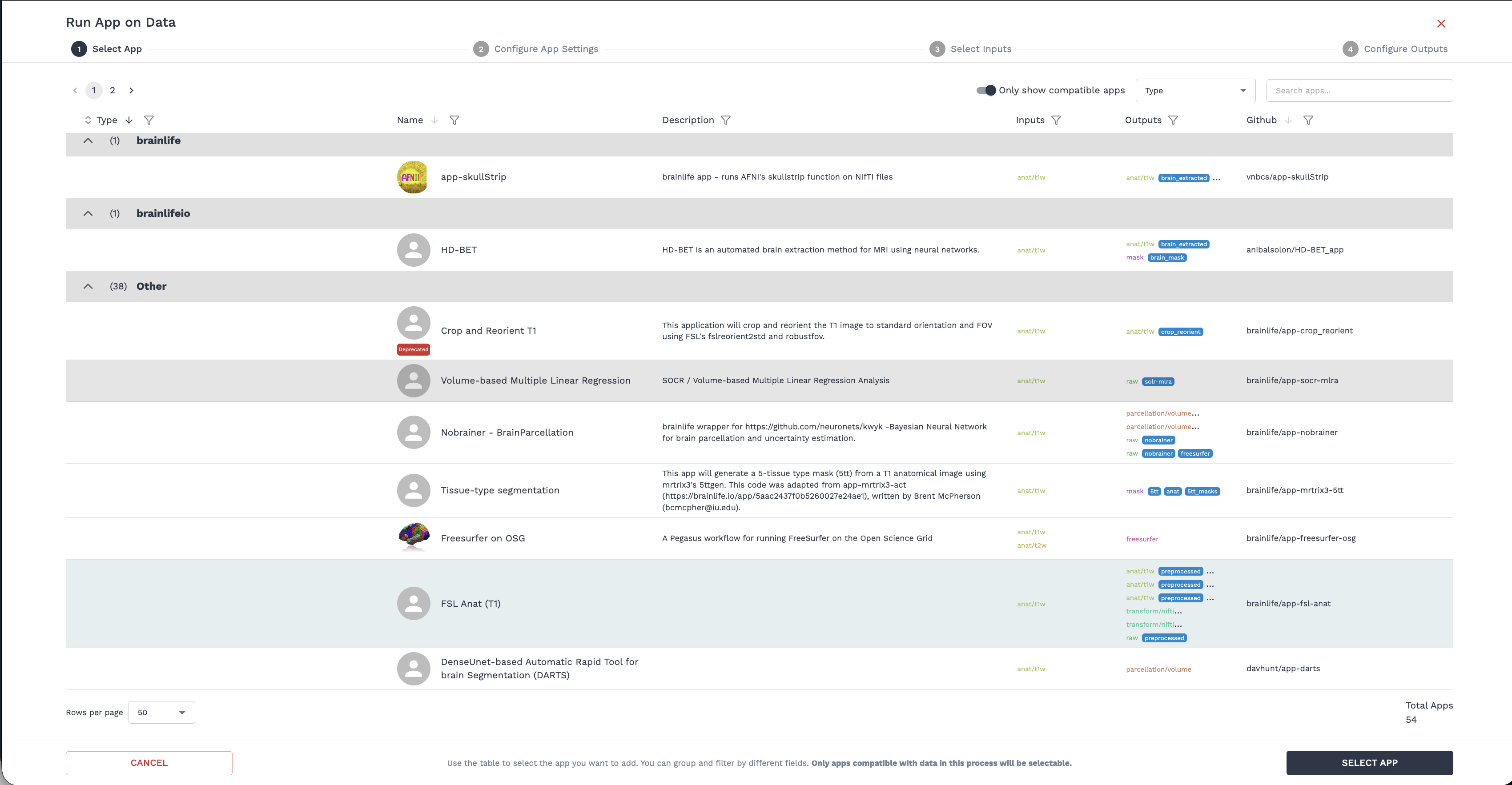
Step 1: Select App #
Browse or search the Brainlife App catalog to select the App you want to automate (e.g., FreeSurfer, FSL BET, Tractoflow, etc.). You can search by App name, keywords, or modalities, and toggle compatibility filters to view only Apps that match your project's staged datatypes.
Step 2: Configure App Settings #
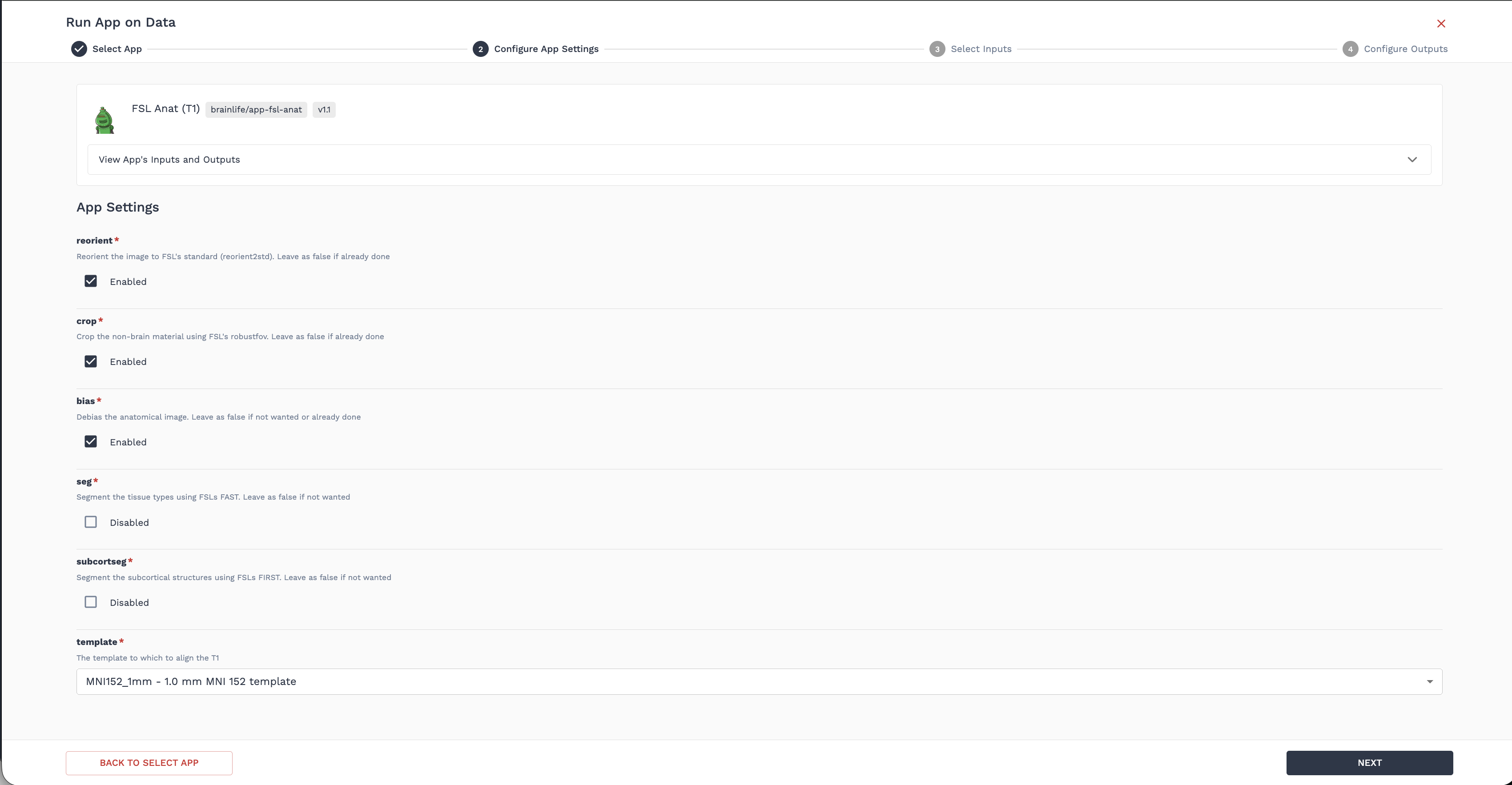
Configure the parameters and arguments for the chosen App:
- Adjust default numeric values, flags, and configuration toggles required for your analysis.
- Expand the Advanced section if your analysis requires specialized execution flags or custom script options.
Step 3: Configure Inputs #
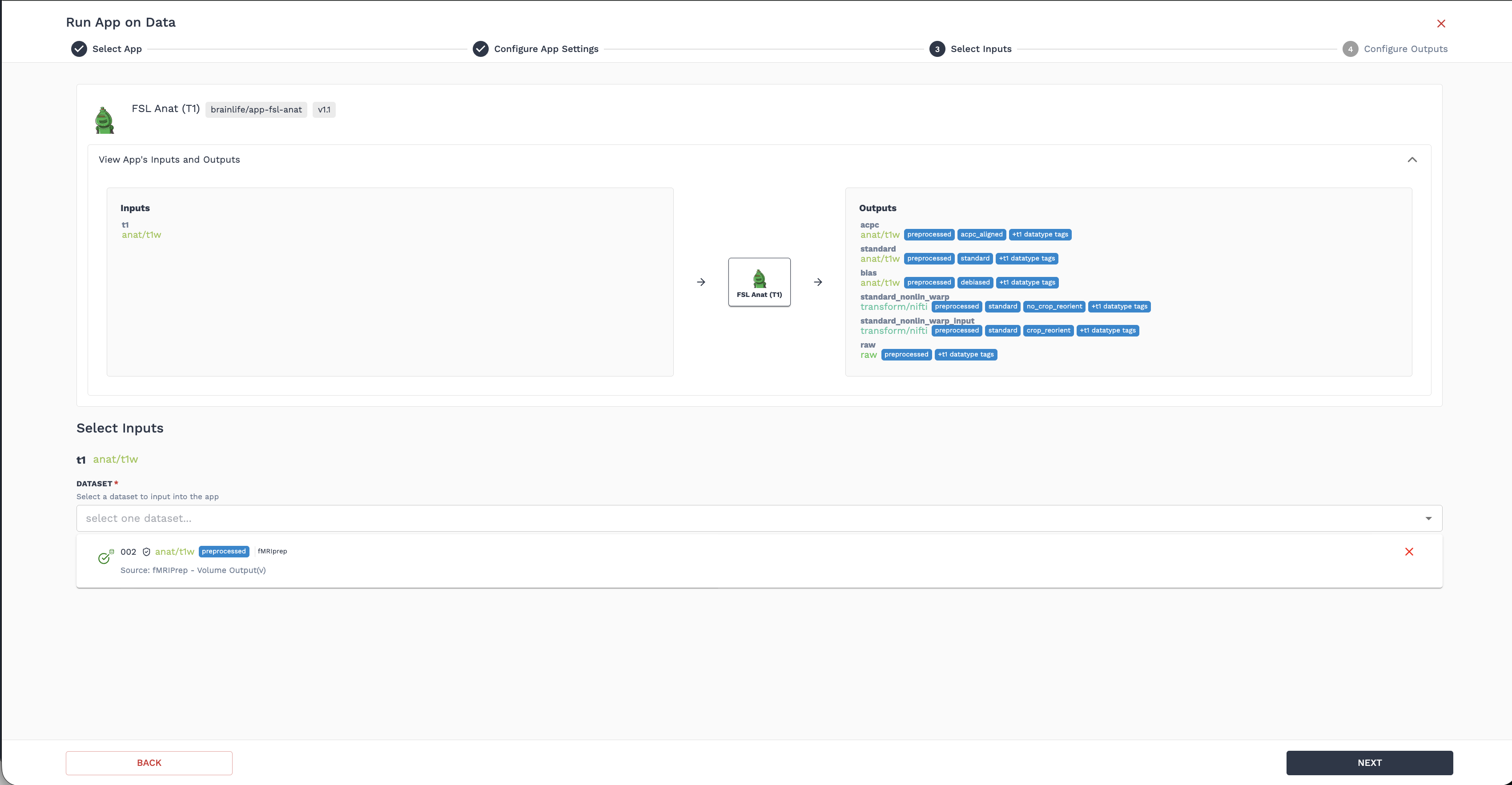
This step defines the matching criteria Brainlife will use to select datasets for each subject and session:
- Required Datatypes: Review the expected input datatypes (e.g.
neuro/anat/t1w,neuro/dwi). - Datatype Tags & Annotation Filters: If your project contains multiple datasets of the same datatype for a subject (e.g., multiple T1w runs or sessions), add specific datatype tags or annotation tags to resolve ambiguity and specify exactly which dataset to use.
- Parent Project Overrides: If the input datasets reside in another project (such as a shared raw data repository), you can specify a project override to read data directly from the parent project without copying or duplicating files.
- Global Subject / Session Filters:
Expand the Global Subject/Session Filters panel to restrict the automation to specific subjects or sessions using regular expressions:
- Subject Filter: Enter a regex pattern (e.g.,
^100to process only subjects whose IDs begin with100, orsub-(01|02|03)for specific cohorts). - Session Filter: Enter a regex pattern to limit processing to specific sessions (e.g.,
01orses-baseline).
- Subject Filter: Enter a regex pattern (e.g.,
- Live Match Counter: A real-time badge indicates how many subjects/datasets in your project currently match your filter criteria.
Step 4: Configure Outputs #
Specify how generated derivatives should be identified:
- Output Dataset Tags (Annotations): Add descriptive tags to the generated outputs (e.g.,
acpc_aligned,freesurfer7). - Output Descriptions: Optionally provide a label or description for downstream tracking.
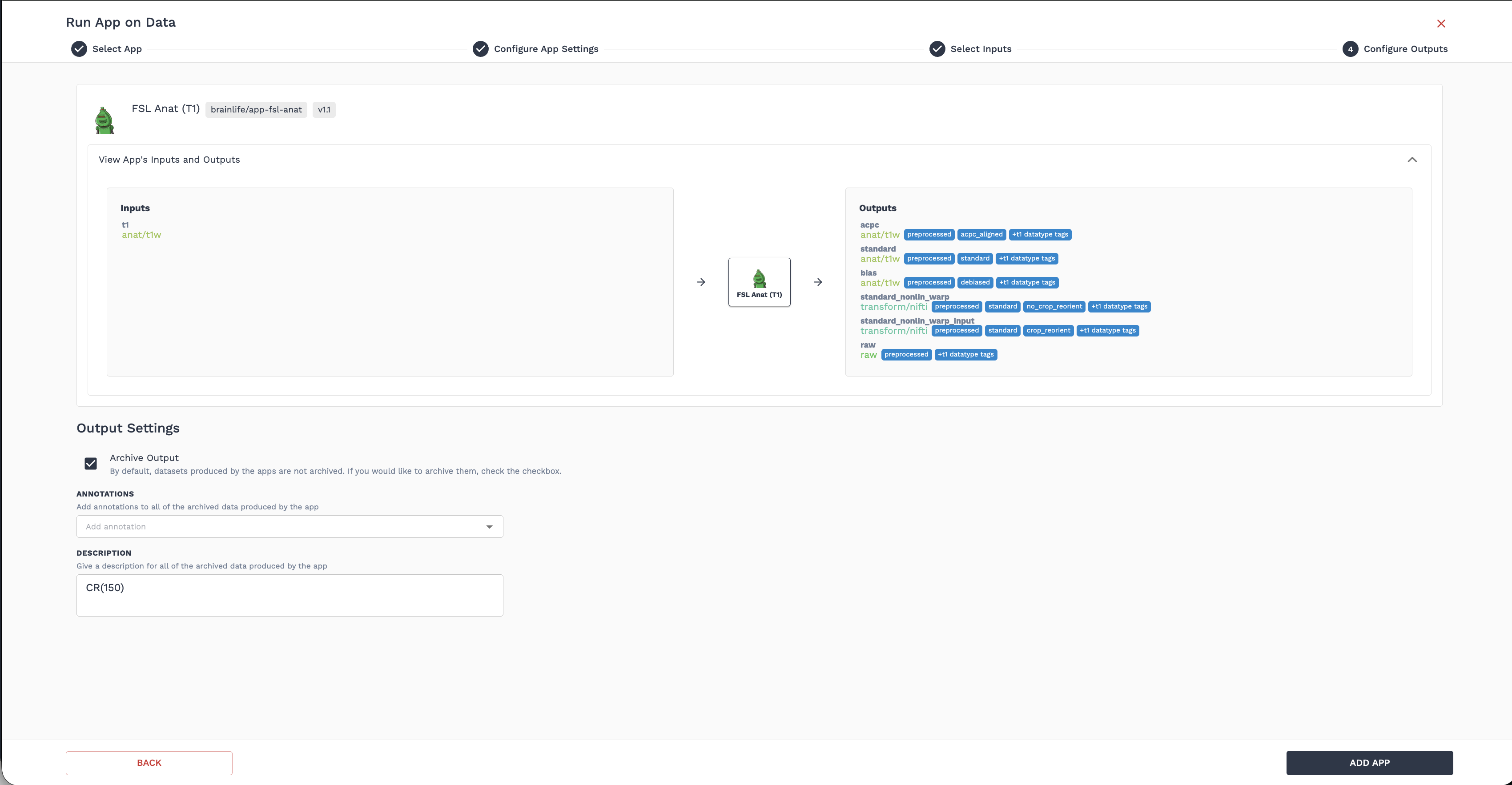
Tagging your outputs is strongly recommended. Output tags distinguish datasets generated by this specific automation from other Apps producing the same datatype, and they prevent accidental duplicate runs while enabling downstream automations to target this exact derivative.
Click Create to activate the automation and add it to your pipeline.
Organizing Pipelines: Automation Groups #
As your analysis grows in complexity, you can group related automations together:
- Click the
+ Automation Groupbutton in the pipeline toolbar. - Enter a descriptive name (e.g.,
Structural Preprocessing,Diffusion Processing, orNetwork Analysis). - Once created, groups appear on the canvas and in the sidebar list.
- You can collapse or expand groups to keep your workflow clean and focused.
- Move individual automations into or out of groups via the automation action menu (
Move to group).
Interactive Flowchart Canvas #
The pipeline page provides an interactive, visual flowchart canvas powered by an automated graph layout engine:
- Nodes: Each card represents an automation App, showing its icon, name, active status, and live subject processing counters.
- Connections (Edges): Directed lines automatically connect Apps when an output datatype and tag match downstream input requirements, showing you the end-to-end data flow at a glance.
- Canvas Controls: Pan by dragging, zoom with your mouse wheel or the mini-map controls, and click nodes to open detailed inspectors.
- Collapsible Automations Sidebar: Click the sidebar toggle on the left to reveal a searchable, ordered list of all automations and groups in your project.
- View Settings: Click the View Settings button to toggle options such as Show Inactive Automations or customize canvas display preferences.
Monitoring Automation Status #
Clicking on any automation card in the flowchart opens the Automation Details modal, which breaks down all subjects into four clear categories:
| Status Group | Description |
|---|---|
| Waiting | Subjects that have not run yet because required input datasets or upstream prerequisites are not yet available. |
| Processing | Tasks that have met all prerequisites and are currently requested, queued, or running on compute resources. |
| Complete | Subjects that have finished processing successfully and whose output datasets are safely archived. |
| Attention | Subjects requiring user attention, including failed tasks or cases with ambiguous matching inputs (e.g., multiple matching datasets where tags are needed to distinguish them). |
From the Automation Details modal, you can:
- Toggle Active / Inactive: Use the switch to temporarily pause or resume automatic job submission.
- View in Processes: Click the list icon to jump directly to the Processes tab with filters pre-set to show all tasks associated with this automation.
- Edit Automation: Click the pencil icon to modify configuration settings, input filters, or output tags.
- Delete Automation: Remove the rule from your pipeline.
Modifying & Updating Automations #
If you need to change configurations or update parameters on an existing automation:
- Open the automation details and toggle the status switch to Inactive so no new jobs are submitted with the old parameters.
- Click the Edit (pencil) button to adjust your App settings or filters.
- If the change alters data outputs (e.g., different resolution or registration target), navigate to the Processes tab or Data tab to clean up any obsolete tasks or outputs generated with the old configuration.
- Toggle the automation back to Active to resume processing.
Brainlife will automatically submit a task whenever a subject has valid inputs but no matching archived output. If you remove an existing task or output dataset while an automation remains Active, Brainlife will automatically re-queue and re-run that subject. If you do not want it re-submitted, deactivate the automation first.